
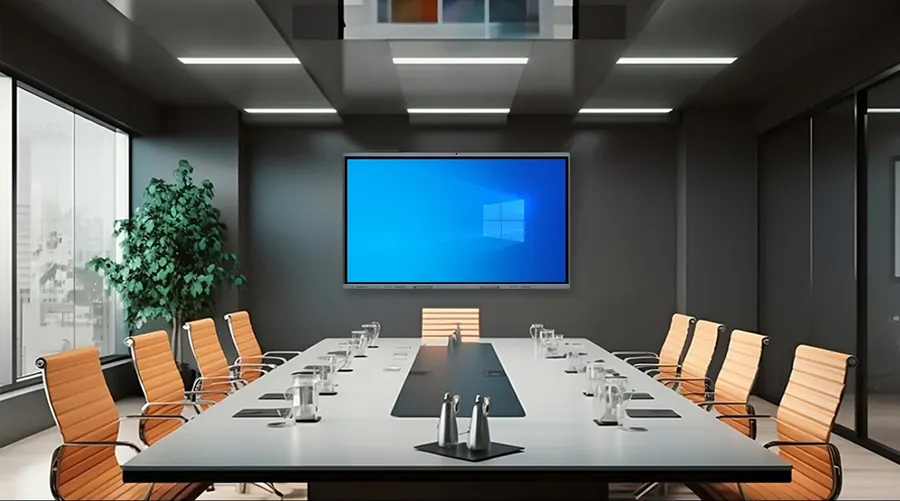
The key is to choose based on how your team actually meets—not on the longest specification sheet or the biggest screen in the showroom. This guide explains the most important factors to evaluate before buying an interactive meeting tablet.
1. Start With the Room, Not the Product
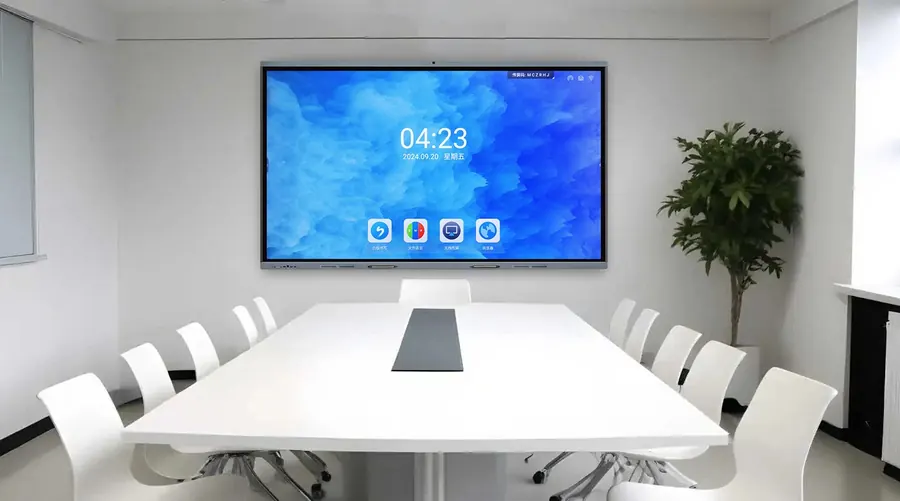
The best meeting display for a small huddle room is rarely the best choice for a large boardroom or a training room. Before comparing brands, define the space and the people who will use it.
Consider the room size, seating layout, number of participants, and typical viewing distance. As a practical rule, a 55-inch display can work well in a small huddle room for two to four people. A 65-inch screen suits a small meeting room with four to six participants. A 75-inch display is a comfortable choice for medium rooms with six to ten people. For larger rooms, classrooms, or boardrooms, 86-inch, 98-inch, and even larger displays may be necessary so that text remains readable from the back of the room.
Also think about how the room is used. Is it mainly for local presentations? Hybrid video meetings? Brainstorming and whiteboarding? Training sessions? Customer demos? A room used mostly for video calls may need an excellent camera, microphone array, and speaker system. A room used for collaborative workshops may prioritize low-latency touch, a great pen experience, and powerful whiteboard software. A room used for presentations may value brightness, anti-glare coating, and reliable wireless casting above all else.
2. Display Quality: The Foundation of the Experience
Because an interactive meeting tablet is first and foremost a display, image quality matters. Look for a 4K UHD resolution on sizes of 55 inches and above. Full HD may be acceptable for smaller or budget displays, but 4K gives sharper text, cleaner charts, and a more professional impression.
Brightness is another important factor. A typical indoor meeting room display should offer at least 350 to 400 nits, while brighter rooms with large windows may need 450 to 500 nits or more. If sunlight often hits the screen, an anti-glare or matte finish can make a bigger difference than raw brightness alone. Wide viewing angles are also essential, because people seated at the sides of the table should see the same image quality as people in the center.
Do not overlook color consistency, contrast, and eye comfort. A display with good uniformity avoids bright spots and dim corners. Low blue light and flicker-free technology can reduce eye strain during long meetings. If the display will be used for design reviews or brand presentations, check color accuracy as well. For general business use, natural skin tones, clear text, and consistent white backgrounds are usually more important than cinematic color performance.
3. Touch Performance and Pen Experience
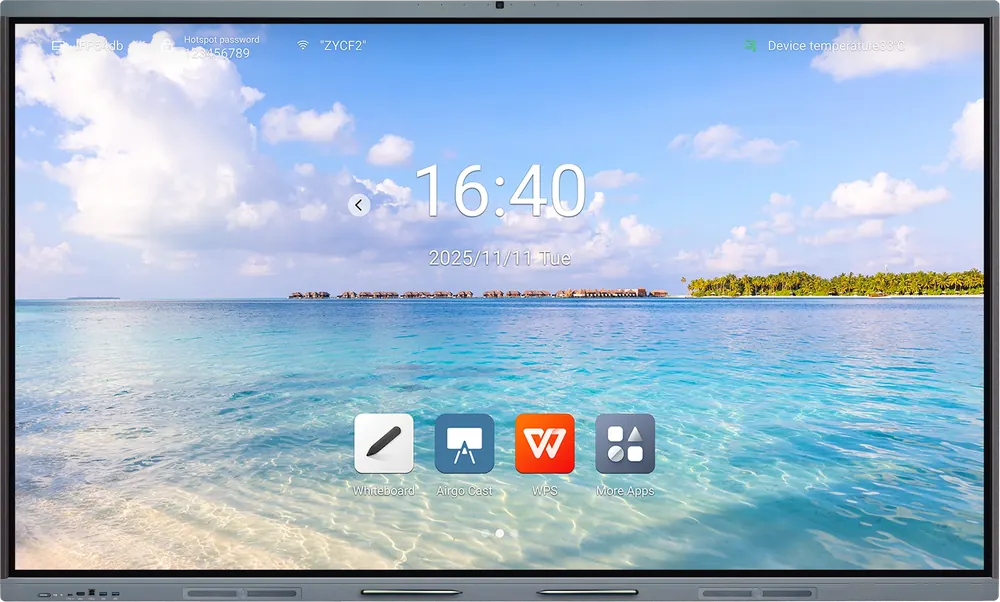
The touch system is what separates an interactive meeting tablet from a standard TV. There are two common technologies: infrared touch and capacitive touch. Infrared touch is often more affordable and supports larger sizes, while capacitive touch tends to feel more like a premium smartphone or tablet, with faster response and a more natural writing experience.
Look for at least 20-point multi-touch if multiple people will interact with the screen at once. More importantly, check touch latency, accuracy, and palm rejection. A display may support many touch points on paper, but if writing feels delayed or the cursor drifts, collaboration becomes frustrating. If the screen will be used for drawing, annotating documents, or mind mapping, test the pen performance carefully. Some systems include two pens for simultaneous writing, which is useful for brainstorming sessions.
Consider whether the pen is passive or active, whether it needs charging, and whether replacement pens are easy to buy. A good pen should feel comfortable, require little pressure, and produce smooth lines without noticeable lag. The glass surface should also be durable and easy to clean. Tempered glass, anti-glare etching, and scratch resistance are valuable in busy meeting rooms.
4. Audio and Video for Hybrid Meetings
Modern meetings are rarely fully in-person. A good interactive display should support hybrid collaboration without requiring a tangled collection of extra devices. Some models include a built-in camera, microphone array, and speakers. Others are designed to work with external USB cameras and audio systems.
If the display includes video conferencing hardware, check the camera resolution, field of view, zoom, and framing features. A 4K camera is helpful, but sensor quality, low-light performance, and automatic framing often matter more. The microphone should pick up normal speaking voices from across the table while suppressing background noise and echo. The speakers should be clear enough for speech, not just loud enough for music.
For medium and large rooms, an all-in-one display may not provide sufficient microphone coverage. In that case, choose a display that works well with external audio devices, or select a model with an optional expansion microphone. The most important question is compatibility: will the display work smoothly with Zoom, Microsoft Teams, Google Meet, Cisco Webex, or whatever platform your organization uses?
5. Choose the Right Computing Platform
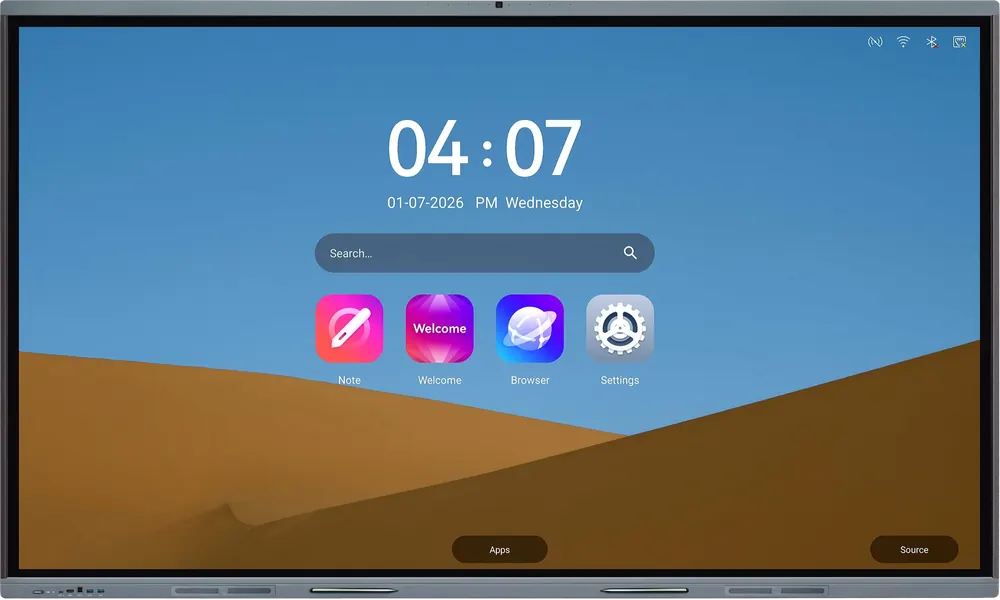
Interactive meeting tablets generally fall into three categories: Android-based, Windows-based, and bring-your-own-device (BYOD) systems.
Android-based displays are usually simple, fast to start, and easy to operate. They are excellent for whiteboarding, wireless casting, web browsing, and running a limited set of meeting apps. However, some Android models may not support every enterprise application, may receive fewer long-term updates, or may have restrictions on app installation. If you choose Android, look for a well-supported business model, preferably with Google EDLA certification or a strong vendor ecosystem.
Windows-based displays, or Android displays with a plug-in Windows OPS module, offer maximum software compatibility. They can run desktop versions of Microsoft Office, Teams, Zoom, and specialized business software. This flexibility is valuable for training rooms, engineering reviews, and organizations with Windows-centric IT environments. The trade-off is higher cost, more maintenance, and the need for stronger security management.
BYOD systems do not rely on a built-in computer. Instead, users connect their own laptops or mobile devices. This can be simpler and more secure because the room does not store company data. However, it places more responsibility on wireless casting and cable connectivity. The best approach is often a hybrid one: a reliable built-in platform for quick collaboration, plus easy HDMI or USB-C access for laptops.
6. Wireless Casting and Connectivity
Wireless casting is one of the most used—and most criticized—features of interactive meeting displays. When it works, it allows anyone to share a screen in seconds. When it fails, the meeting stops while people search for dongles, passwords, and network settings.
Check which casting standards are supported: AirPlay, Miracast, Chromecast, Google Cast, and proprietary apps. Ideally, the display should support multiple methods so that Windows, macOS, iOS, and Android devices can all connect. Guest access should be simple, perhaps through a QR code or a temporary PIN, without exposing the corporate network.
Security matters here. A display that allows unrestricted casting can become a data leak or disruption risk. Look for network isolation, guest network support, session PINs, and the ability to disable casting when needed.
For wired connections, look for front-facing HDMI and USB-C ports. USB-C is especially useful because a single cable can carry video, audio, data, and power to a laptop. Confirm that the display provides enough USB power to charge common laptops, and that the touch signal passes back to the connected computer. Other useful ports include HDMI output, USB touch, Ethernet, audio output, RS-232 for control systems, and an OPS slot for a plug-in computer module.
7. Software, Whiteboarding, and User Experience
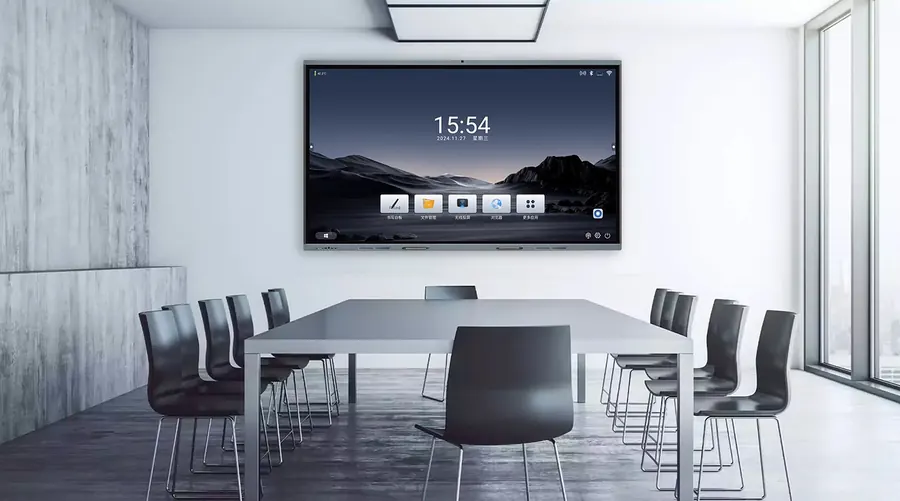
Hardware gets people into the room, but software determines whether they use the display every day. A good interactive meeting tablet should offer a fast, intuitive whiteboard with an infinite canvas, smooth pen input, shape recognition, sticky notes, image insertion, and easy saving or sharing. Users should be able to export their work as PDF, image, or cloud files, or continue the session on their own devices.
Annotation is another key feature. Presenters often need to mark up a slide, PDF, web page, or live video. The annotation tools should be easy to access and should not interfere with the underlying application. Multi-user collaboration should feel natural, and session recovery should prevent lost work if the display restarts.
Check how software updates are delivered and whether the vendor charges subscription fees for essential features. Some displays include free whiteboard software, while others require a separate license for cloud storage, device management, or advanced collaboration. Also consider language support, accessibility features, and whether the interface can be customized for your organization.
8. Security, Management, and IT Fit
For business buyers, manageability is as important as collaboration. The display should support secure firmware updates, encryption, user authentication, and remote administration. IT teams should be able to monitor device health, install or block apps, configure network settings, and reset the device without visiting the room.
Look for support for SSO, role-based access, kiosk mode, and integration with mobile device management platforms. If the display runs Android or Windows, confirm how security patches are handled and how long the model will receive updates. Guest access should be convenient but controlled, especially in public-facing offices.
A meeting room display may also process sensitive information. Consider whether data is stored locally, in the cloud, or only during a session. Ask vendors about data residency, privacy policies, camera and microphone indicators, and whether the device can be managed under your existing security policies.
9. Installation, Support, and Total Cost of Ownership
The purchase price is only one part of the cost. Add installation, mounting, cabling, electrical work, software subscriptions, training, and ongoing support. A mobile stand may be better than a wall mount if the display needs to move between rooms. If it is wall-mounted, confirm the VESA pattern, wall strength, and whether the chosen height is comfortable for both seated and standing users.
Warranty and service are critical. Business displays should typically come with at least a three-year warranty, and some vendors offer five years. Check whether support is remote or on-site, how quickly replacement parts arrive, and whether the warranty covers the touch panel, backlight, and computing module. A cheaper display with poor local support can become far more expensive over its lifetime.
10. Test Before You Buy
Never choose an interactive meeting tablet based only on a showroom demonstration or a specification sheet. Bring your own devices and run realistic tests. Connect a Windows laptop, a Mac, and a phone. Start a video call using your actual meeting platform. Write on the screen with a pen for several minutes. Open a large PDF and annotate it. Try wireless casting with a guest device. Test the microphone from the far end of the room. Ask two people to write on the screen at the same time. Check how easy it is to save and share the whiteboard.
If possible, run a pilot in one meeting room for a few weeks. Collect feedback from regular users, not just IT staff. The best display is not necessarily the one with the most features; it is the one that people can use confidently without calling for help.
A Simple Decision Framework
Score each candidate from 1 to 5 in these categories, then apply weights based on your priorities:
- Room fit and screen size: 15%
- Display quality and touch performance: 20%
- Video conferencing and audio: 15%
- Platform and software compatibility: 15%
- Wireless casting and connectivity: 10%
- Security and manageability: 10%
- Support, warranty, and total cost: 15%
A display that scores well across all categories will usually serve a team better than one that excels in only one area.
Final Thoughts
Choosing a good interactive meeting tablet is not about finding the biggest screen or the longest feature list. It is about matching the technology to the room, the people, and the way your organization collaborates. Prioritize a bright, clear display with responsive touch, reliable casting, strong hybrid meeting support, and software that feels effortless. Confirm that the platform fits your IT environment, that security and management are practical, and that the vendor will support the device for years.
When you evaluate the full experience—not just the hardware—you will choose a meeting tablet that actually gets used. That is the real measure of a good investment: not how impressive it looks on the first day, but how naturally it helps teams share ideas, make decisions, and work together every week.
Compare H2 interactive meeting tablets.
Tell us your room size, meeting style, software and quantity. We will recommend the right H2 display.